

At times we may want a person behind a camera to capture your memories when going out and about. Here’s how to get that with a Galaxy Watch and a Samsung phone.
How to do it
To start, be sure that camera access is set to on. To do this, you can open the notification panel and tap on camera access, making sure that it is set to on. Once you have done this, pair your Galaxy Watch and your Samsung phone together.
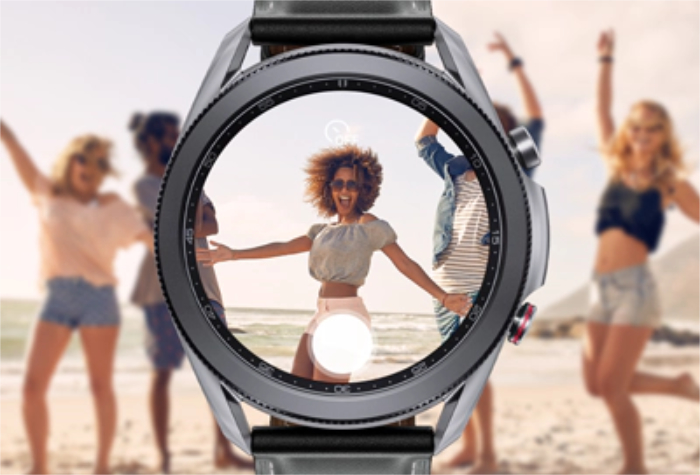
Place the phone in a position with the rear camera facing towards you. Then, on your Galaxy Watch, scroll through the apps menu and tap on the Camera icon, also known as the Camera Controller. This will then open up the camera app on your phone and will share what the camera can see on your phone. Get in a pose, and then you can tap on the white button in order to take a picture. A small preview of the picture will flash up on the watch, and then shortly disappear.
That’s it! This sort of functions like the S-Pen feature, where you can use the button to take a picture.

