

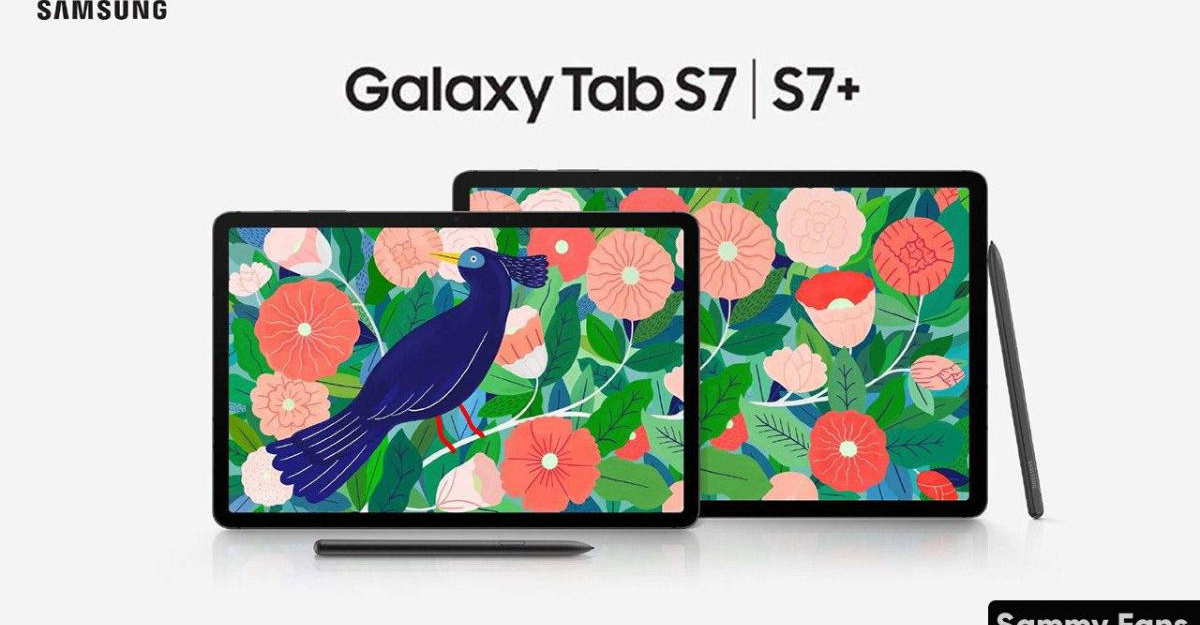
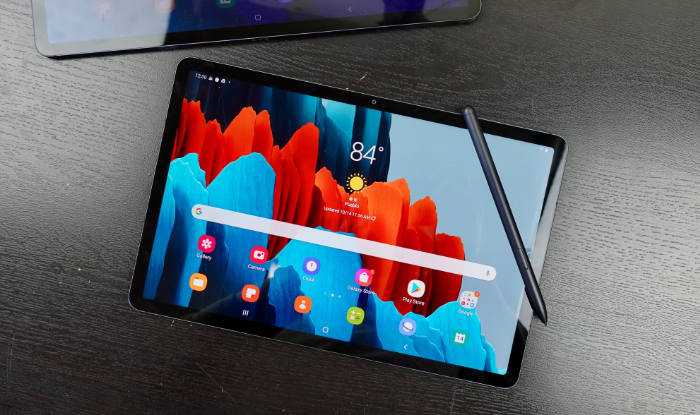
The Samsung Tab S7 and S7+, which both started on Android 10, have now received the One UI 4.0 update, or Android 12. The new update brings a whole load of new features, such as limiting the device to charge only up to 85% to keep the battery healthy and mixing emoji’s together with the built-in Samsung keyboard by just clicking a button.
Device care
There’s a few thing’s that are noticeable, such as the fact that there is a face emoji at the top, that can tell you when your phone is great, good, or if it needs optimising. You’ll also be able to see that the options for ‘Battery’, ‘Storage’, ‘Memory’, and ‘Device Protection’ are now round instead of being a single rectangle.
Battery options
Clicking ‘Battery’ shows a lot of different options, such as used since the last full charge, how long a full charge will last, and swiping left shows the last 7 days, and your average daily usage.
There’s the usual Power saving toggle, but then there are background usage limits which give you the option to limit battery usage for the apps that you don’t use that often. At the very bottom, there are more battery settings. Pressing that will give you options such as the adaptive battery, show battery percentage, fast charging and a new feature called protect battery, which makes it so that the device only charges to 85% to preserve the battery.
Storage
The storage menu in Device Care has changed. Most items are now changed to rounded corners instead of a typical rectangle. The menu is colour labelled to tell you what is eating your storage using the bar. It can also show what app has put data into the recycle bin, and it can show you what files are simply duplicates. Lastly, it can show large files.
Others
Memory now shows more detailed info, such as how much memory is being used, how much is reserved, and how much VRam there is. Device protection is the same, except for showing the policy agreements near the top.
Mixing Emoji’s
You can now mix emoji’s to send to your friends easily by just opening the Samsung Keyboard. First, open the app that you will use to talk to your friends. Then, click the emoji button that looks like a smiling face. Now click the 2 emoji icon, and click the huge plus icon. From there, you will be able to create a new mix of emojis in a .gif format that will automatically play once sent to the person that you want to receive it.
New charging animation
In previous versions of One UI, the charging animation has been the same. In One UI 4.0, the new charging animation is now thicker, more colourful, and more obvious that your phone IS charging. The colour can vary between dark green and light green, or dark blue and light blue depending on the percentage that your phone is on.
Camera/Mic usage
Just like Apple’s products, the new update now allows users to see when the Mic/Camera is being used by any app. At first, it will appear as an icon but then will fade to become a small green dot. There is an option that allows you to completely switch off all Camera/Mic permissions, by heading into the quick access menu and clicking the add icon. You can then proceed to bring down the ‘Microphone access’ and the ‘Camera access’ buttons, which by default are turned on. Clicking these buttons will deny every app permission to the camera/microphone.
Android 12 Animation
By opening settings and scrolling all the way down to about tablet, press software information, and then repeatedly press the Android version until an easter egg will open. Keep on turning the hands until it reaches 12 o’clock and then stops. The new Android 12 animation will then appear.
There are lots of new features for One UI 4.0 and has made a lot of design features.

